> For the complete documentation index, see [llms.txt](https://docs.rhinofcp.com/llms.txt). Markdown versions of documentation pages are available by appending `.md` to page URLs; this page is available as [Markdown](https://docs.rhinofcp.com/creating-and-running-code-objects/using-external-files-at-runtime.md).
# Using External Files at Runtime
This article explains how to use external files in your code run. Your workgroup has a unique cloud storage (an S3 bucket on Rhino Orchestrator) to upload non-sensitive data that might be needed during code run, e.g., open-source large LLM model weights.
### Important Sensitive Data Instructions
Cloud storage (specified in *Workgroup code and model artifacts storage* section in the instructions that follow) is owned by Rhino. **Please DO NOT upload sensitive information such as proprietary datasets.** For sensitive data, please use the instructions in [Creating a New Dataset or Dataset Version](https://docs.rhinohealth.com/hc/en-us/articles/12385893636509) instead.
### Overview
For your code to be able to access files while running in your agent we need do 4 steps:
1. Set up a bucket to upload your files
2. Upload files to your designated bucket
3. Reference your files in your code
4. Use your files in a specific run
#### Find the bucket to upload your files
The bucket is created as part of the onboarding process into the FCP by client request, you can find it in your settings page under Containers & Artifacts. Here is how to find it.
1. In your project, select the settings button (it looks like a sprocket at the bottom left side of the page.
2. In the Settings menu, which is near the top of the screen on the left side of the window, select Containers & Artifacts.
3. Your storage bucket and bucket prefix appear in the *Workgroup code and model artifacts storage* part of the page.
#### Upload files to your designated bucket
AWS offers many alternative ways to upload files to an S3 bucket. We've also provided a script in our user\_resource repository you can use: [upload-file-to-s3.sh](https://github.com/RhinoHealth/user-resources/blob/main/rhino-utils/upload-file-to-s3.sh).
You need to define your S3 credentials and then you can call the script like this:
```auto
./upload-file-to-s3.sh the_folder_to_upload storage_bucket bucket_prefix your_path_in_bucket
```
For the example above, if you wanted to upload files in a local folder (called "local\_folder" in the below example) and store them in a folder in FCP called "my\_files", the command would be:
```auto
./upload-file-to-s3.sh ./local_folder external-files-rhino-health-dev my_files
```
#### Reference your files in your code
When creating your code object, you can reference your external files by referencing them in the following path:
```auto
/external_data/the_folder_in_s3_you_want_to_upload_to/filename
```
For the example above, assuming you uploaded \`model\_params.txt\` file under \`my\_files\`, the file would be accessible during runtime in
```auto
/external_data/my_files/model_params.txt
```
An example of Python code to read your file data into a \`text\` variable would look like as follows:
```auto
from pathlib import Path
text = Path('/external_data/my_files/model_params.txt').read_text()
```
#### Use your files in a specific run
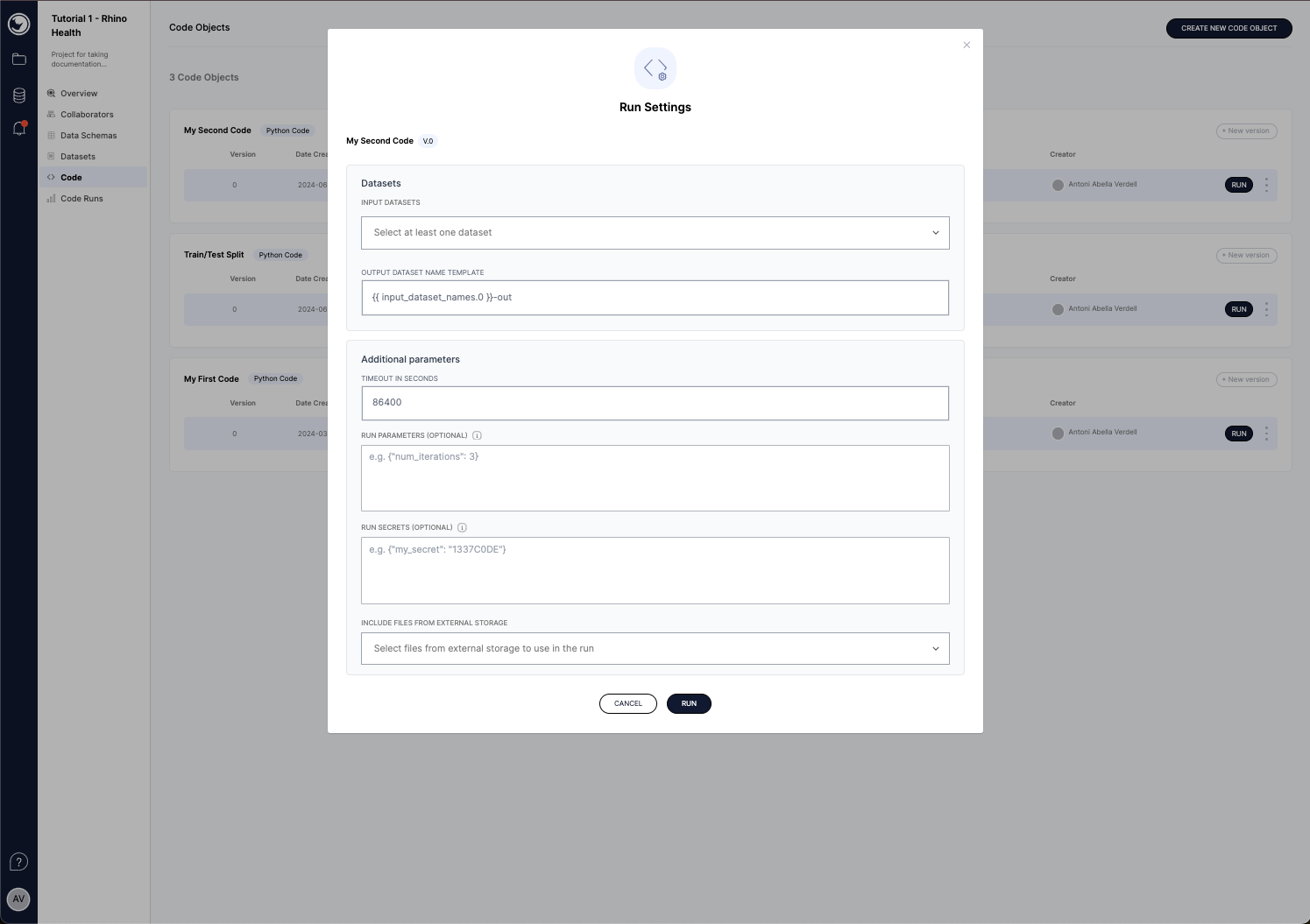
Once your code points to your external files, and the code object is created, you can run the code and specify the files you want to use in your code run. In the UI, you can simply select them from a dropdown
[](https://docs.rhinohealth.com/hc/article_attachments/19768498689565)
Alternatively, you can also use the SDK. See this [notebook to use external files via SDK](https://github.com/RhinoHealth/user-resources/blob/main/examples/rhino-sdk/runtime_external_files.ipynb) for more details.
---
# Agent Instructions
This documentation is published with GitBook. GitBook is the documentation platform designed so that both humans and AI agents can read, navigate, and reason over technical content effectively. Learn more at gitbook.com.
## Querying This Documentation
If you need additional information that is not directly available in this page, you can query the documentation by asking a question.
Perform an HTTP GET request on the following URL with the `ask` and `goal` query parameters:
```
GET https://docs.rhinofcp.com/creating-and-running-code-objects/using-external-files-at-runtime.md?ask=&goal=
```
`ask` is the immediate question: it should be specific, self-contained, and written in natural language.
`goal` is what the user is ultimately trying to achieve, the reason they need the answer. Sharing it helps GitBook give you a better, more relevant answer. A goal is most helpful when it describes the outcome the user wants rather than restating the question. For example, with `ask=how do I create an API token`, a goal like `automate deployments from our CI pipeline` lets GitBook tailor the answer to that use case.
The response will contain a direct answer to the question and relevant excerpts and sources from the documentation.
Use this mechanism when the answer is not explicitly present in the current page, you need clarification or additional context, or you want to retrieve related documentation sections.