> For the complete documentation index, see [llms.txt](https://docs.rhinofcp.com/llms.txt). Markdown versions of documentation pages are available by appending `.md` to page URLs; this page is available as [Markdown](https://docs.rhinofcp.com/datasets/registering-configuring-and-exporting-datasets.md).
# Registering, Configuring, and Exporting Datasets
Explains how to register, configure and export datasets in Rhino FCP.
## Registering Datasets
Rhino FCP allows you to easily and securely register datasets that you can use in your project. This article explains how you can register datasets from the following:
* *Tabular Data files* that are in the Rhino Client File System (such as a CSV or Parquet file) or a supported database.
* *File Data* that is in the the Rhino Client File System such as a client mount directory (or subdirectory) rhino\_data directory (or subdirectory). These files are typically non-tabular files, such as code, images, or generic data in files or a folder.
* *DICOM Data* stored on a DICOM Server or DICOM files that are in the Rhino Client File System.
{% hint style="info" %}
If you'd like to register datasets using Rhino SDK, see [Creating a New Dataset or Dataset Version.](/rhino-sdk/registering-a-new-dataset-or-dataset-version-using-rhino-sdk-and-sql.md)
{% endhint %}
### Prerequisites
Before you register your dataset, you’ll need to do the following:
* If you are planning to register your dataset directly from a database, make sure that the database is supported (see [Import Tabular Data from an SQL Server](#h_01K8NZH645W3S593NNTK7V1DX9) for more details.) If not, you can export the file from your database and register it as a flat file. You’ll also need database access credentials like the database username and password for your account, as well as your database name, port, and URL.
* If you are planning to register from one or more files (tabular, DICOM, or other files), you’ll want to upload them to the Rhino Client File System.
* If you are planning to register from a DICOM Server, you’ll need the host, port, and prefix, as well as your username and password.
You will also need to determine whether you have sensitive data in your dataset. By default, sensitive data is selected; to learn more about how sensitive data is handled in Rhino FCP see [Sensitive Datasets.](/datasets/sensitive-datasets.md)
### Open the Dataset Page
To open the dataset page, do the following.
{% stepper %}
{% step %}
**Select Datasets**
Select **Datasets** from the left-side menu.

{% endstep %}
{% step %}
**Open the Datasets page**
The **Datasets** page appears. The **Overview** link should already be selected.

{% endstep %}
{% endstepper %}
The name of each dataset, along with the version, data schema, date created, number of rows (or failed registration status), and creator appear for each version of the dataset. A three-dot menu appears to the right side of each version of each dataset entry.
| Item | Description | Notes |
| -------------- | ---------------------------------------------------------------------------------------------------------------------------------------------------------------------------------------------------- | ------------------------------------------------------------------------------------------------------------------------------------------------------------------------------------------------------------------------------------------------------------------------------------------------------------------------------------------------------------------------------------------------------------------------------------------------------------------------------------------------------------------------------------------------ |
| Name | Name of the Dataset. Dataset versions are auto-numbered sequentially in the order of creation. If you see gaps in version numbers, numbers that do not appear were deleted by a user. | - Dataset versions are auto-numbered sequentially in the order of creation. If you see gaps in version numbers, numbers that do not appear were deleted by a user.
- A pink background and an icon (eye with a lock) indicates that the dataset contains sensitive data. A blue background indicates that the dataset does not contain sensitive data.
- The publish icon appears if the dataset has been published. For more information, see Publishing Datasets.
|
| Version | Version of the dataset, starting with 0. Also indicates whether the dataset has been marked as having sensitive data. An exclamation mark appears if an error occurred with registering the dataset. | Troubleshooting information can appear here. |
| Data Schema | Indicates the name of the data schema. If you’ve auto-generated, the name of the schema includes the version number. | |
| Date Created | Indicates the date the dataset was generated in Rhino FCP.. | |
| Number of Rows | Indicates the number of rows in the dataset. If there was an issue with registration, a message appears instead. | |
| Creator | Indicates the name of the creator. | |
| Three-Dot Menu | Provides additional actions that can be performed on the dataset record. | |
### Open the New Dataset Page
To open the New Dataset page, do the following.
{% stepper %}
{% step %}
**Open the New Dataset screen**
In **Datasets** page, select **Import New Dataset** to open the New Dataset screen.

{% endstep %}
{% step %}
**Enter dataset details**
Enter your name and a description of your dataset.
{% endstep %}
{% step %}
**Select a workgroup**
Select your workgroup.
{% endstep %}
{% step %}
**Choose schema generation**
Indicate whether you want to auto-generate the schema from the data or select one from the list (if there is one available).
{% endstep %}
{% step %}
**Choose the dataset location**
Indicate the location of the dataset that you want to register.
{% endstep %}
{% step %}
**Use the table below for the next step**
| | |
| -------------------------------------------------------------------------------------------------------------------------------------------------------------- | ------------------------------------------------------- |
| To do this ... | Go to the following subsection .... |
| Select tabular data from a SQL Server, like data from a SQL table. To use this option, you'll need the database type, name, URL, port, and access credentials. | Register Tabular Data from an SQL Server |
| Register data from the Rhino Client File System. To use this option, you'll need to know the path to the file. | Register Tabular Data from the Rhino Client File System |
| Register non-tabular file data such as images or other types of data. To use this option, you'll need to know the path to the file. | Register File Data (Non-Tabular) |
| Register DICOM Data. To use this option, you'll need to know the credentials to the DICOM system. | Register DICOM Data |
| {% endstep %} | |
| {% endstepper %} | |
### Register Tabular Data from an SQL Server
You can register tabular data from a SQL Server. Supported databases are: IRIS, MariaDB, MSSQL (Microsoft SQL), MySQL, Oracle, PostgreSQL, and SQLite.
{% stepper %}
{% step %}
**Open the New Dataset page**
Open the New Dataset page.
{% endstep %}
{% step %}
**Enter dataset details**
Enter your name and a description of your dataset.
{% endstep %}
{% step %}
**Select a workgroup**
Select your workgroup.
{% endstep %}
{% step %}
**Choose schema generation**
Indicate whether you want to auto-generate the schema from the data or select one from the list (if there is one available).
{% endstep %}
{% step %}
**Choose the location type**
In the New Dataset section, in the Location section, slide the **Tabular Data** to the right, then select **SQL Server**.

{% endstep %}
{% step %}
**Enter database details**
Enter the following details so that Rhino FCP can connect to your database.
* Database Type - Select the type from the drop down list.
* Database Name - Enter the database name.
* Database Port - Enter the port.
* Database URL - Enter the database URL.
* Username - Username to gain access to your database.
* Password - Password to gain access to your database.
* Timeout Seconds - The number of seconds for the timeout. The default number is typically adequate, but you can adjust this as needed.
{% endstep %}
{% step %}
**Enter a SQL query**
Enter a SQL query to pull data from the database. You will want to create a simple query that will enable you to test your credentials, such as `SELECT * FROM [enter_table_name_here] LIMIT 10;` Note that other types of queries, such as determining the name of the database that you are connecting are not supported.
{% endstep %}
{% step %}
**Register the dataset**
Select the **Import New Dataset** button. The New Dataset page closes, and the dataset appears in the Datasets page.
{% endstep %}
{% step %}
**Use the three-dot menu**
If you click on the three-dot menu, there are several options that are available.
{% endstep %}
{% endstepper %}
### Register Tabular Data from the Rhino Client File System
To register tabular data from a CSV or Parquet file, complete the following steps.
{% stepper %}
{% step %}
**Choose the file location type**
In the New Dataset section, in the Location section, slide the **Tabular Data** to the right, then select **File**.

{% endstep %}
{% step %}
**Enter the file path**
Enter the path to your file. The path should be in the Rhino Client File system. For more information, see: [Mounting Storage to Your Rhino Client,](/settings/mounting-storage-to-your-rhino-client.md) [Importing to and Exporting Datasets from Your Network Storage](/getting-started/quick-start-guide/importing-and-exporting-datasets-to-and-from-your-network-storage.md), and [Example 2: Defining a Dataset with File Data.](/datasets/example-2-defining-a-dataset-with-file-data.md)
{% endstep %}
{% step %}
**Register the dataset**
Select the **Import New Dataset** button. The New Dataset page closes, and the record of the dataset appears in the Datasets page.
{% endstep %}
{% endstepper %}
### Register File Data (Non-Tabular)
To register file data from non-CSV files, complete the following steps.
{% stepper %}
{% step %}
**Choose the Rhino Client File System location**
In the New Dataset section, in the Location section, do the following:
* Slide the **Tabular Data** to the right and select **Rhino Client File System**. The File Data and DICOM Data sliders become active.
* Slide the **Tabular Data** slide to the left.
{% endstep %}
{% step %}
**Open File Data**
Next, slide the **File Data** slider to the right. The File Data section opens.

{% endstep %}
{% step %}
**Enter the file path**
Enter the path to your file. The path should be in the Rhino Client File system. For more information, see: [Mounting Storage to Your Rhino Client,](/settings/mounting-storage-to-your-rhino-client.md) [Importing to and Exporting Datasets from Your Network Storage](/getting-started/quick-start-guide/importing-and-exporting-datasets-to-and-from-your-network-storage.md), and [Example 2: Defining a Dataset with File Data.](/datasets/example-2-defining-a-dataset-with-file-data.md)
{% endstep %}
{% step %}
**Register the dataset**
Select the **Import New Dataset** button. The New Dataset page closes, and the record of the dataset appears in the Datasets page.
{% endstep %}
{% endstepper %}
### Register DICOM Data
To register DICOM Data, complete the following steps.
{% stepper %}
{% step %}
**Choose DICOM Data**
In the New Dataset section, in the Location section, slide the **DICOM Data** slider to the right. You can choose to provide the path to the DICOM Files or connect to the DICOM Server.
{% endstep %}
{% step %}
**Enter a DICOM file path or choose the server option**
By default the Files option appears. If you want to register DICOM files by specifying the file path, enter the path in the DICOM PATH text box. You’ll need to have already downloaded the files to a path that is part of the Rhino Client File system. For more information, see: [Mounting Storage to Your Rhino Client,](/settings/mounting-storage-to-your-rhino-client.md) [Importing to and Exporting Datasets from Your Network Storage](/getting-started/quick-start-guide/importing-and-exporting-datasets-to-and-from-your-network-storage.md), and [Example 2: Defining a Dataset with File Data.](/datasets/example-2-defining-a-dataset-with-file-data.md) 
{% endstep %}
{% step %}
**Select DICOM Server**
If you would prefer to enter the DICOM Data from the DICOM Server, select the DICOM Server button. 
{% endstep %}
{% step %}
**Enter DICOM server details**
Enter the Host, DICOM Web Port, DICOM Web Prefix, as well as the Username and Password for access.
{% endstep %}
{% step %}
**Register the dataset**
Select the **Import New Dataset** button. The New Dataset page closes, and the record of the dataset appears in the Datasets page.
{% endstep %}
{% endstepper %}
### Troubleshooting Dataset Registration
To troubleshoot data registration, complete the following steps.
{% stepper %}
{% step %}
**View the error message**
Hover the pointer over the exclamation point to view the error message. The error message provides information that can help you troubleshoot.

{% endstep %}
{% step %}
**View the dataset configuration**
Select the three-dot menu, then select **Show dataset configuration** to view the setup information.

{% endstep %}
{% step %}
**Check your configuration**
* Is your username correct?
* Are your connection details correct?
* Are your file paths correct?
* If you are connecting using a SQL query, make sure that table names and fields are spelled correctly. If needed, try a different query.
{% endstep %}
{% step %}
**Test the connection directly**
If a SQL query seems to be correct, try connecting to the database directly using the same credentials that you used in Rhino FCP. Also, try running the query against the database to ensure that the credentials and queries are correct.
{% endstep %}
{% step %}
**Try the import again**
If needed, try creating a new version of the import and running it again.
{% endstep %}
{% step %}
**Contact support**
Contact us if you have any other issues.
{% endstep %}
{% endstepper %}
### Registering Datasets at a Collaborating Site
Given the right permissions, it is possible for users to register Datasets at other sites (and not just their own site). This is useful in case collaborators prefer to only prepare the data and not perform the Dataset import operation on the Rhino FCP.
To perform a remote Dataset registration, a user’s role must have the “Import and export Datasets” permission for that site. For example, if you are the Workgroup Admin of the site that created the project (hence you are the Project Lead Admin, or PLA), then the collaborating site must enable the “Import and export Datasets” permission for the PLA persona.
To trigger the Dataset registration at the collaborating site via the UI, follow the same process for importing a Dataset to your own site via the UI, and in the Select Workgroup dropdown, select the Workgroup of the collaborator. Make sure to input the data file locations on the collaborator’s Rhino Client.
To trigger the Dataset registration at the collaborating site via the SDK, follow the same process for registering a Dataset to your own site via the SDK, and in the “workgroup\_uid” field pass in the UID of the collaborator’s workgroup.
## Viewing a Dataset's Configuration
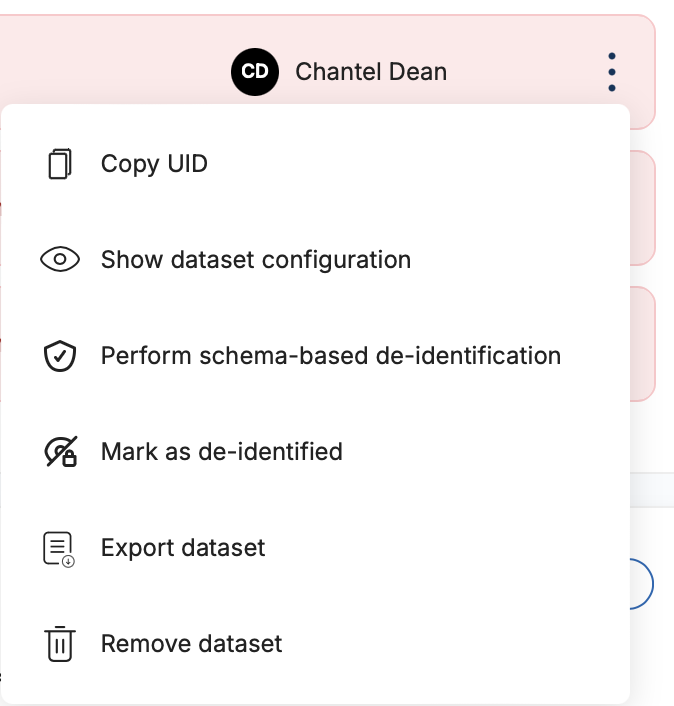
To get an object's configuration, make sure you are on the page containing the original object you would like to view the configuration of. In the box where your original object is, there should be a row for each version. Navigate to the version you would like to view the configuration for and select the three-dot menu button, shown below:

The menu button is on the right-hand side of the row, click it to view a new menu. The new menu should have an option to show that object's configuration, click on that to see the object's configuration.
## Exporting Datasets
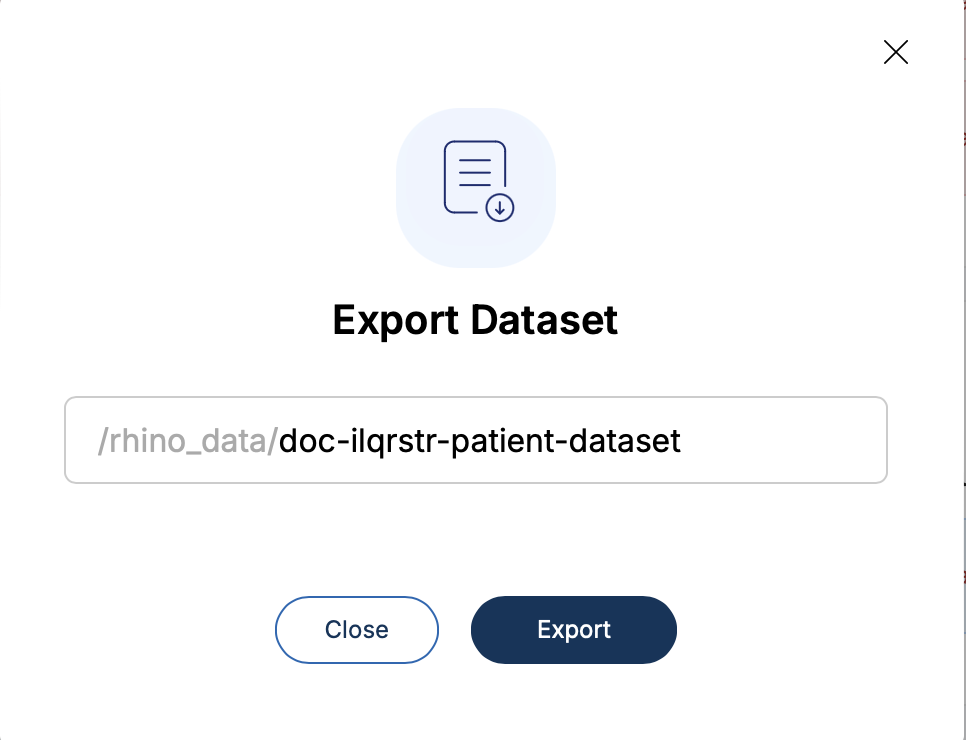
Exporting a dataset makes it accessible in your `/rhino_data` directory in your Rhino Client. You can then access the dataset via SFTP or client-mounted storage. Then, you can use the data outside of the Rhino platform. You can only export datasets that belong to your workgroup if you have the Manage This Site's Datasets Permission. For more information, see [Persona and Permissions Policies Reference](/projects/persona-and-permissions-policies-reference.md)
### Exporting a Dataset
To export a dataset, do the following.
{% stepper %}
{% step %}
**In the Dataset page, on the overview page, select the three-dot menu for the dataset that you want to export.**
 {% endstep %}
{% step %}
**Select Export Dataset. The Export Dataset window opens.**
{% endstep %}
{% step %}
**Select Export Dataset. The Export Dataset window opens.**